
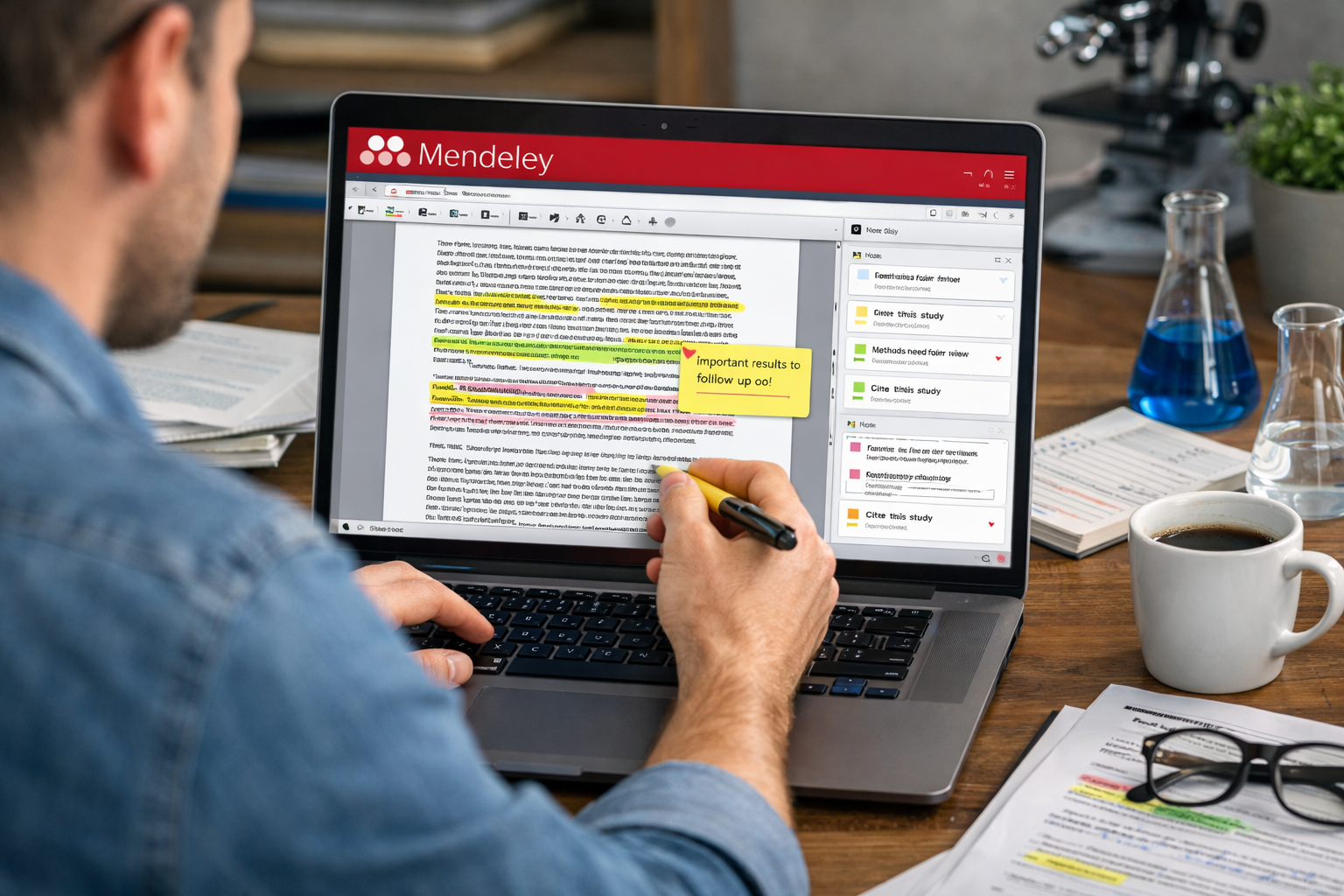
If your daily work involves academic papers, technical documentation, or long-form research reports, PDF annotation is not a luxury feature. It is a core productivity tool. Mendeley, best known as a reference manager, also functions as a capable PDF annotation platform that integrates reading, thinking, and citation management into a single workflow.
This blog post takes a practical, hands-on look at how annotating PDFs in Mendeley actually works. It explains how to highlight text, add annotations, manage notes, and preserve your work, while also addressing the platform’s limitations. The goal is not marketing hype, but clarity, efficiency, and realistic expectations.
Why PDF Annotation Is Central to Modern Research
Research today is rarely linear. Most professionals skim first, highlight aggressively, return later, and synthesize information across dozens or hundreds of documents. Without annotations, PDFs quickly become static storage files rather than active thinking spaces.
Annotation tools serve three purposes at once. They help you mark important passages, record your interpretation of what you read, and create a searchable trail of intellectual decisions. Mendeley’s annotation features are designed to support exactly this kind of iterative reading process, particularly for users who already rely on it for citation management.
Understanding Mendeley’s PDF Annotation Environment
Mendeley supports PDF annotation in the Mendeley Reference Manager desktop app and through Mendeley Web. The modern Reference Manager is the version most users should focus on, as it receives active updates and cloud synchronization.
When you open a PDF in Mendeley, it launches an integrated PDF viewer. The interface is intentionally minimal. Annotation tools appear in a toolbar at the top of the document, while a notes panel can be toggled on the side. The design prioritizes reading first and interaction second, which aligns well with long research sessions.
Annotations made in Mendeley are embedded directly into the PDF file. This design choice ensures that your highlights and notes are preserved if the file is opened in another PDF reader or exported to a different system.
Highlighting Text in Mendeley
Highlighting is the most frequently used annotation feature in Mendeley, and it is also the most polished. Users can select text and apply a highlight with a single click. The interaction feels responsive even with large or image-heavy documents.
Mendeley provides several highlight colors, allowing users to apply consistent visual meaning across documents. Many researchers adopt informal systems, such as using yellow for key claims, blue for methods, green for references worth following, and pink for critiques or questions.
Although Mendeley does not allow you to label or name highlight categories, the highlights remain searchable. This means you can quickly locate highlighted passages across your entire library using keyword search, which significantly reduces review time during writing.
Adding Annotations and Inline Comments
Highlights indicate importance, but annotations capture understanding. Mendeley allows users to attach text notes directly to selected passages or to specific locations on a page.
To add an annotation, you either select text and choose the note tool or click on the page to insert a comment. The note appears as a small icon in the margin, and clicking it opens the comment editor.
Annotations in Mendeley are intentionally simple. They support plain text only, with no formatting, links, or markdown. While this limits expressive power, it also reduces friction. The tool encourages brief, focused comments rather than long digressions.
This design works well for summarizing arguments, questioning assumptions, or recording why a passage matters to your specific project.
Using Sticky Notes for Figures and Sections
Not all insights correspond neatly to a block of text. Mendeley supports free-position notes that can be placed anywhere on the page. These are especially useful when commenting on figures, tables, equations, or entire sections.
Sticky notes are often used to summarize a page, flag issues with a dataset, or note inconsistencies between text and visuals. Because these notes are anchored to a page location, they remain contextually meaningful even when revisited months later.
This feature is particularly valuable in scientific and technical PDFs, where critical information is often embedded in visuals rather than prose.
Reviewing Annotations Through the Notes Panel
One of Mendeley’s most effective features is the notes panel, which aggregates all highlights and annotations for a document in a single list. This panel allows users to review their thinking without scrolling through the entire PDF.
Each entry in the panel links directly to its location in the document. This makes it easy to reconstruct your reading process, identify recurring themes, or extract insights for writing.
For literature reviews, the notes panel effectively becomes a pre-outline. It shows what you considered important and why, which can dramatically reduce the cognitive load when transitioning from reading to drafting.
Editing and Managing Annotations
Editing annotations in Mendeley is straightforward. Clicking on an existing note allows you to revise the text instantly. Highlights can be removed or recolored with minimal effort.
However, Mendeley does not offer annotation version history. Once a note is edited or deleted, the change is permanent and synced across devices. This reinforces the importance of deliberate annotation and occasional PDF backups, especially for long-term projects.
Collaboration and Shared Libraries
Mendeley supports shared libraries, which makes collaborative annotation possible, but with limitations. Annotations made by collaborators are visible in shared PDFs, but the system lacks advanced collaboration features.
Users cannot reply directly to notes, assign comments, or clearly track annotation authorship in complex discussions. For light collaboration, such as shared reading lists or joint paper reviews, this may be sufficient. For intensive peer review or structured feedback, dedicated annotation platforms offer more control.
Exporting and Preserving Your Work
One of Mendeley’s strongest design decisions is embedding annotations directly into PDF files. This ensures portability and longevity. Annotated PDFs can be opened in Adobe Acrobat, Preview, or other PDF readers without losing content.
This approach prevents vendor lock-in and protects your intellectual labor. Even if you stop using Mendeley in the future, your annotations remain accessible and readable.
How Mendeley Compares to Other Annotation Tools
Mendeley occupies a middle ground in the annotation ecosystem. It offers more structure than basic PDF readers but fewer advanced features than specialized knowledge tools.
Compared to Zotero, Mendeley is more streamlined but less customizable. Compared to Adobe Acrobat, it is simpler but far more integrated with academic workflows. Compared to modern reading tools like Readwise Reader, it is more conservative but also more predictable.
For users who value stability, portability, and tight reference integration, Mendeley’s approach is often the right balance.
Best Practices for Effective Annotation in Mendeley
Effective annotation is less about tools and more about habits. Consistent highlight color usage improves later recall. Writing notes in your own words strengthens comprehension. Summarizing sections rather than copying text accelerates synthesis.
Regularly reviewing the notes panel before writing helps bridge the gap between reading and drafting. Exporting annotated PDFs as backups ensures long-term safety of your work.
Mendeley’s PDF annotation tools are not flashy, experimental, or cutting-edge. They are deliberate, reliable, and well-integrated into a research-focused workflow. For many users, that restraint is a strength rather than a weakness.
If your priority is thinking clearly while reading, and keeping that thinking connected to your references, Mendeley remains a dependable choice for annotating research PDFs.